 InspectCam™
For plumbers and plumbing shops · Pro on Google Play (US)
Photo app for plumbers: the leak, the fix and the report, all in one job
One tap and the light stays on under the sink, free. With Pro, every photo goes into the job and the customer gets a report with your company's name.

By , developer of InspectCam™ · Published · Last updated
InspectCam™ is a flashlight camera for trades. The camera is free: one tap and the light stays on under the sink, behind the water heater or in the crawl space. InspectCam™ Pro files every photo into the job you're on, with the client and the address on the job card. When the work is done, Pro makes a PDF report under your company's name. Send it as a file, or as a link the customer opens in a browser. Pro is on sale in the US, in the app, through Google Play.
A plumber takes a lot of photos: the leak, the valve, the label on the water heater, the new trap. Then they sit in the camera roll next to the kids and the dog. When the customer asks "what did you do?", or the office needs a photo for the invoice, somebody scrolls. And the photos from under the sink are often too dark to read.
Jump to
Light that stays on under the sink (free)
On most Android phones the flashlight turns off when the camera opens. In photo mode, most stock camera apps only fire it as a flash. InspectCam™ drives the light itself, so you can see what you're shooting before you shoot it.
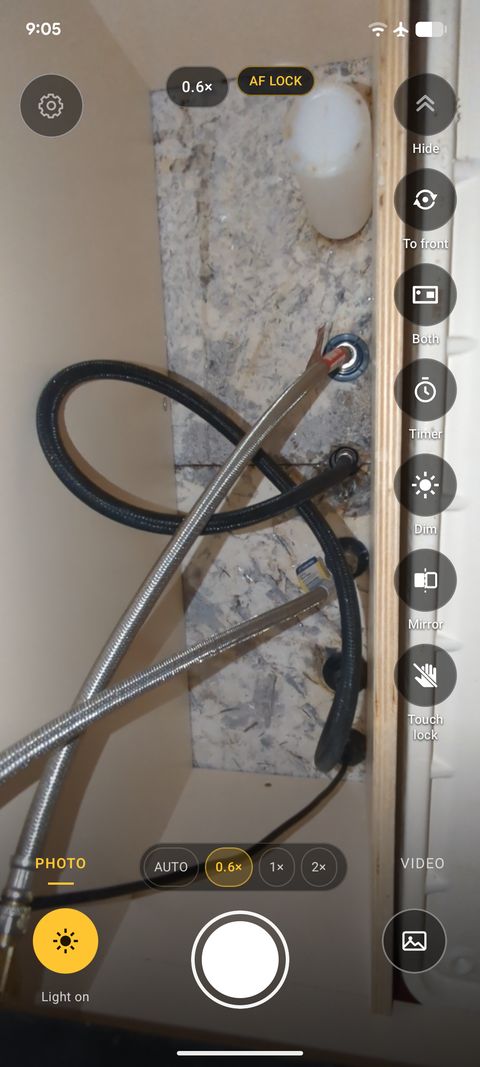
One tap and the phone's light stays on while you look, take photos and record video. The light stays on through a short video, and on the Pixel 6a we tested, through a still photo too. Zoom with a pinch or the wide and close presets your phone supports. The light turns off after 10 minutes untouched, or if the phone gets very hot. Tap the light to turn it back on. Film a slow drip so the customer sees where it comes from: our guide on how to find a leak under the sink shows where to look.
Need to see past your hand, like up a wall or down a drain opening? Plug in a USB borescope. Works with: Klein Tools ET16 (tested). Tested and doesn't work: DEPSTECH NTC55, Bazo DN200 and a scope sold as “Industrial scope W400”; they only work with their maker's app. Most scopes sold on Amazon won't work. The full list is on works with.
Every photo goes into the job
With Pro, you sign in with Google and start your company in the app. Make a job for each call: the client and the address go on the job card. Pick the job before you start, and every photo and video you take files straight into it.

The jobs list keeps all your jobs, so last month's water heater swap is easy to find. Photos and videos you take into a job also upload to the cloud. Pro puts the date, time and place on them, in one line along the bottom.
What to photograph on a plumbing call
Take these five photos on every call, not only on the jobs that feel risky.
- The problem, before you touch it. A wide shot so anyone can tell which room, then close.
- The shut-off valve. Where it is and that it's closed.
- The label. The water heater, the pump or the fixture: model and serial in one sharp photo. Our guide on photographing a data plate works for water heaters too.
- The work before it's covered. Pipe in an open wall or a trench, before drywall or dirt goes back.
- The work done. From the same spot as the first photo, so the two match.

Pro's ready-made Plumbing template is yours to change once added. Coming soon: it lists four of them for you: Problem, Shut-off valve, Water heater label and Work done.

The report your customer gets
When the job is done, tap Full report. Pro makes a PDF under your company's name, with each photo and the date and time it was taken. Send it as a file. Or, from a company job's full report, send a link: your customer opens the report in their browser and can download the PDF. No app for them, no account.

A report like this answers "what did you do?" before the customer asks. It also helps when someone says the work wasn't done: see how to prove the work was done.
Put a numbered arrow or a circle on a photo and type a note under it, and both print in the report. Pair the photo of the drip with the one of the new trap, and they print on one before and after page. Pro's Restoration template comes with a work authorization and a certificate of completion that the customer signs on your phone (you can add them to your copy of the Property manager template too), each printed on its own page of the report. Their default wording is written for water damage jobs. Coming soon: your own wording, set once in Settings, and voice notes.
Working as a sub? Send photos by link
On new builds and remodels, the general contractor wants your photos: the rough-in, the pressure test, the finished fixtures. If the GC uses InspectCam™ Pro on Team or Business, they can text or email you a link for the plumber.
Tap the link. Your phone's browser opens a page to send photos into the Plumber folder of their job. Nothing to install, no account. Keep the page open until the upload finishes. Coming soon: a QR code for each trade, on a sheet taped up on site.
Your techs on the same jobs (coming soon)
Duo holds up to 2 people, Team up to 5 and Business up to 10. Coming soon: each tech works the same jobs on their own phone, and the office sees their photos without asking for them. For now, everyone on the account needs an Android phone; the iPhone app is coming soon, with Pro included.
Which plan fits a plumbing shop
| Plan | People | Fits |
|---|---|---|
| Duo | Up to 2 | A plumber working alone, with room for a helper. Jobs, reports, cloud upload and share links; your helper on the same jobs (coming soon). |
| Team | Up to 5 | A small shop. Everything in Duo, plus the trade photo drop. |
| Business | Up to 10 | A shop with several trucks. Everything in Team. |
Duo, up to 2 people, $39.99 a month or $399.90 a year. Team, up to 5 people, $89.99 a month or $899.90 a year. Business, up to 10 people, $159.99 a month (monthly only). Duo and Team: yearly is a year for the price of ten months. US prices, plus any tax, charged by Google Play. A company's first plan can start with a 30-day free trial. The owner buys in the app. Everyone in the company gets Pro. Team and Business add the trade photo drop. More than 10 people? Email support@inspectcam.app. The rest is on the InspectCam™ Pro page.
Questions plumbers ask
Is InspectCam™ free for plumbers?
The camera is free on Google Play: one tap and the light stays on while you look, take photos and record video. Jobs, PDF reports under your company's name, cloud upload and share links are Pro. A company's first plan can start with a 30-day free trial.
Does my customer need the app to see the report?
No. Send the report as a PDF file, or as a link. The link opens the report in the customer's browser, where they can download the PDF.
Can I send photos to a general contractor without their app?
Yes, if the GC uses InspectCam™ Pro on Team or Business. They text or email you a link. It opens a page in your phone's browser, and your photos go into the Plumber folder of their job. No app and no account.
Does the light stay on while I film a leak?
Yes. The light stays on through a short video, and on the Pixel 6a we tested, through a still photo too. It turns off after 10 minutes untouched, or if the phone gets very hot.
Do my techs need Android phones?
For now, yes: Pro is on Android, sold in the US. The iPhone app is coming soon, with Pro included.
Pro for other trades: electricians, HVAC techs, general contractors, roofers, home inspections, rental move-in and move-out, water damage restoration and mold remediation, or see who InspectCam™ is for.