 InspectCam™
Troubleshooting
Your Android phone isn't detecting your borescope — here's the fix order
The most common cause is the cable, not the phone. Work in this order: use the scope's own USB cable, confirm your phone supports USB OTG, check the scope is UVC-compliant, and answer the USB permission prompt. Wi-Fi scopes need Android stopped from dropping a no-internet network.
By , developer of InspectCam™ · Published · Last updated
There are five common failure points: the cable, USB host mode, the scope's protocol, the permission prompt, and power. They do not fail at equal rates, so the order you check them in matters. This page works through them from most to least likely.
The sections below cover what Android does when a USB camera is connected, and what changed in Android 14 and 15.
Jump to
Triage: match your symptom first
Find the row that matches what your phone is actually doing. It will save you working through fixes that can't possibly apply.
| Symptom | Most likely cause | Start at |
|---|---|---|
| Nothing happens at all. No prompt, no sound, no scope LED. | Charge-only cable, or the phone isn't supplying host power | Fix 1, then 2 |
| Scope LED lights up, but no app sees it. | Power is flowing but data isn't: cable, or a non-UVC scope | Fix 1, then 3 |
| A permission dialog flashed and vanished, now nothing responds. | A default app grabbed the device, or you tapped "deny" | Fix 4 |
| Works on a friend's phone, not yours. | Your phone lacks USB OTG / host mode, or blocked the connection while locked | Fix 2, then 7 |
| Connects, then drops after a few seconds, often with the phone warm. | Power draw exceeds what the port will give | Fix 6 |
| Image is there but frozen. Moving the probe changes nothing. | Feed died; the app is still painting the last frame | Read this |
| Wi-Fi scope connects, then the phone silently leaves it. | Android dropped a network with no internet on it | Fix 8 |
| Only works one way round when you flip the plug. | A partially wired USB-C plug or a worn port | Fix 5 |
| Nothing works anywhere, on any phone. | Dead scope or severed cable at the strain relief | Fix 9 |
The nine fixes, in order of likelihood
Use the scope's own cable: charge-only cables are the single most common cause
A USB cable can carry power without carrying data. The ones bundled with power banks, cheap wall chargers, hotel freebies and most "fast charging" cables sold on price are wired for power only: the data pins are either absent or not connected. Your scope will light up. Your phone will see nothing.
There's no way to tell by looking. The plug is identical. So:
- Use the cable the scope came with, or its captive cable if it has one.
- If you're using an extension or adapter, remove it entirely for this test. Many USB-C to USB-A adapters are charge-only too.
- Verify a suspect cable by connecting your phone to a computer with it. If the computer offers to browse the phone's files, the cable carries data. If it only charges, it doesn't.
Do this test before anything else, even if you're certain the cable is fine.
Confirm your phone supports USB OTG (host mode)
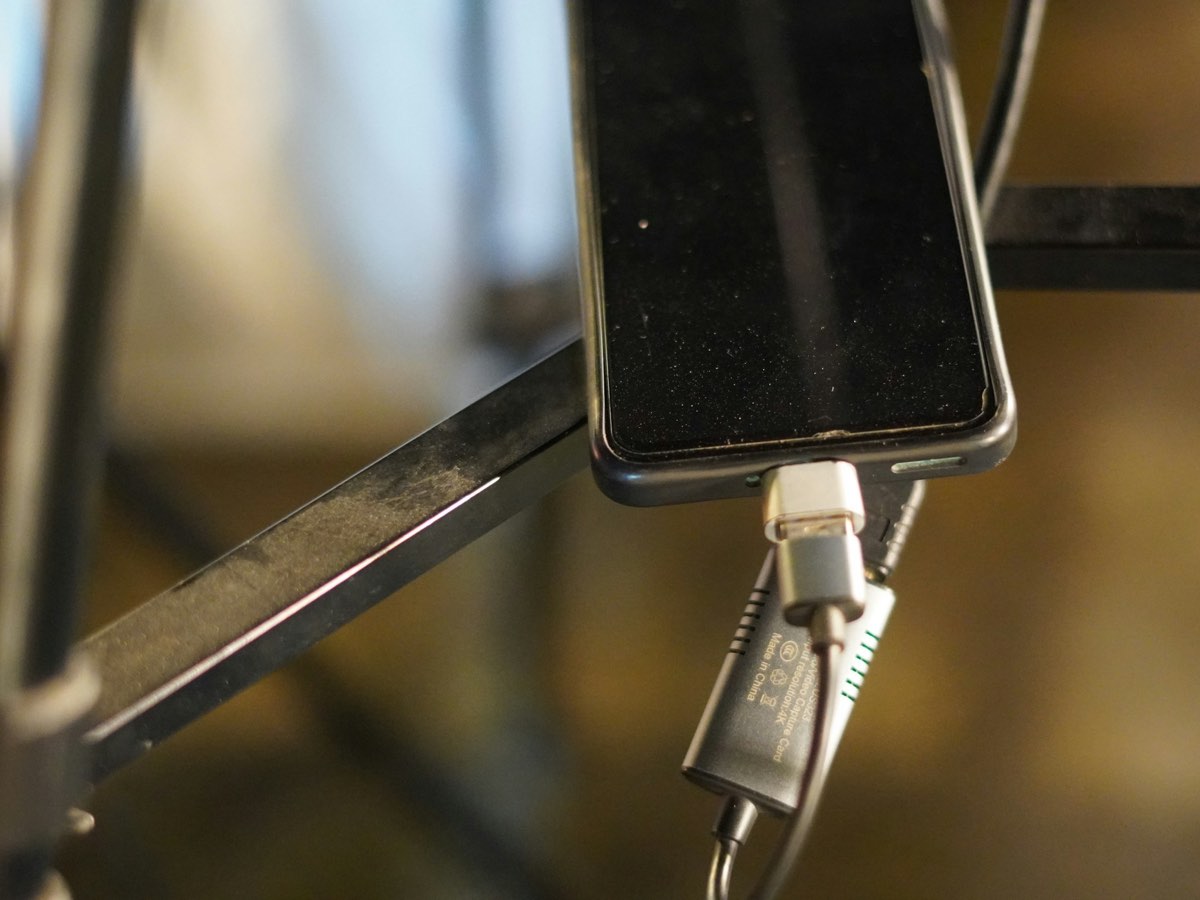
Normally your phone is the device on a USB link and the computer is the host. To run a borescope, the phone has to flip roles and become the host: supply the 5 V, enumerate the peripheral, and drive it. That capability is called USB OTG, or USB host mode. The silver adapter in the photo at the top of this page is an OTG adapter: it lets a full-size USB plug go into the phone’s port.
Most Android phones have it. Some budget models don't, and no app can add it. On OPPO, realme, OnePlus and vivo phones OTG is also a switch: search Settings for OTG. It can turn itself off after a few minutes unused, so switch it on right before you test.
Quickest check: plug in a USB mouse. If a cursor appears, host mode works and your problem is elsewhere in this list. Don't rely on OTG-checker apps: they read a flag the manufacturer set rather than testing anything.
The full test, why checker apps get it wrong, and what to do if your phone has no OTG →
Check the scope is UVC-compliant, not proprietary
USB Video Class (UVC) is the standard that lets any camera identify itself to any host in a language the host already speaks. It's why a webcam works on a computer without a driver. A UVC borescope will work with any competent Android viewer app.
Some scopes aren't UVC. They use a manufacturer's own protocol and will only ever talk to that manufacturer's own app, which in this category is frequently abandoned. If your scope is proprietary, no third-party app can see it, however good the cable is. Signs you have one:
- The box or manual insists you install one specific named app.
- The manufacturer's app is the only thing that has ever shown a picture.
- The scope is a Wi-Fi model: most of these are proprietary over the network rather than UVC.
Product listings that specify "UVC", "driver-free" or "works with any camera app" generally indicate a compliant device. Listings that name one specific required app generally indicate a proprietary one. If you're still choosing, which borescope specs actually matter covers what to look for beyond this.
Answer the USB permission prompt, and clear a stuck default
When a USB camera is plugged in, Android shows a dialog: Allow [app] to access [device]? Nothing gets a video stream until you tap Allow. This dialog is easy to miss: it can appear behind a lock screen, or under a notification you were already swiping away.
- Unlock the phone, then plug the scope in.
- Look for the dialog asking whether to let an app use the USB device. It is easy to miss under a notification.
- Tap OK (some phones say Allow) for the app you want to use.
- Leave “always open” unticked unless that is the app you will keep using.
Two things go wrong here:
- You tapped Deny once. Unplug the scope, wait five seconds, plug it back in and read the dialog this time.
- You ticked "always open" for an app you no longer use. Android then hands the scope straight to that app forever, and your current app never gets a prompt. Fix it in
Settings → Apps, find the old app, and clear its defaults. On most phones that's under Open by default → Clear defaults. If the old app is one you don't need, uninstalling it clears the association outright.
Also confirm the app has been granted the Camera permission itself. A viewer app with USB access but no Camera permission will connect and show a black rectangle.
Re-seat the plug, flip it, and clean the port
USB-C is reversible in principle, but plenty of budget cables only wire one side's data pins properly. If your scope works in one orientation and not the other, that's the cable, and it will keep getting worse.

Pocket lint compacts into the bottom of a charging port and stops the plug seating fully: enough contact for charging, not enough for data. Look into the port with a bright light. If it's grey rather than black in there, that's lint. Power the phone off and lift it out with a wooden toothpick. Never anything metal.
Give it more power, or take load off the port
A borescope draws current continuously for its LEDs and its sensor, and the LED ring is the thirsty part. Bright scopes and long probes draw more. Phone ports have a hard current limit and will simply cut the peripheral off rather than exceed it.
This is what's happening if the scope works for a few seconds and then vanishes, or if it only misbehaves when you turn the brightness up.
- Charge the phone above 30%. Some phones throttle port power on a low battery.
- Turn the scope's own LED ring down to test: if it stays connected dim and drops bright, it's power.
- Drop any USB extension cable. Voltage sags over length and the cheap ones sag badly.
- For a genuinely hungry scope, use a powered OTG hub (one with its own power input) so the scope draws from the wall rather than the phone.
Newer Android USB and security settings most guides miss
Android's USB behaviour tightened recently, and guides written before 2024 don't mention any of it.
- Plug in with the phone unlocked. Android can block new USB data connections while the device is locked — on Pixel 6 and later this is USB protection, part of Advanced Protection, a defence against forensic and juice-jacking attacks. On phones and security profiles where this is active, a scope plugged in at the lock screen gets power and no data. Unlock first, then plug in.
- Check the USB mode notification. Since Android 12 the default for a new USB connection is No data transfer. Host-mode peripherals normally bypass this, but if you've been using the phone as a USB drive it can be left in a state where re-plugging behaves oddly. Pull down the notification shade and see what USB mode is reported.
- Sideloaded apps hit restricted settings. If you installed your viewer app from a file rather than a store, Android 13+ may quietly block some permissions until you allow them explicitly from
Settings → Apps → [app] → ⋮ → Allow restricted settings. - Battery optimisation kills background streams. If the feed dies whenever you switch apps or the screen dims, exempt the viewer app from battery optimisation.
Wi-Fi scopes: stop Android abandoning a network with no internet
A Wi-Fi borescope creates its own access point. You join it from the phone. That network has no route to the internet, because it's a camera on a stick — and Android notices.
Android tests every network it joins for internet access. Your scope fails that test, and depending on the phone it will warn you, quietly switch you back to mobile data, or refuse to stay joined at all. The feed dies mid-inspection for no visible reason.
The fix that works on every phone: turn mobile data off while you're inspecting. With no cellular connection to run to, the phone stays put.
Also worth knowing: most Wi-Fi scopes accept only one client at a time. If you handed the phone over and a tablet in the van is still joined, you'll get nothing.
Why Android does this, and the exact setting to change on Samsung, Pixel, Xiaomi and iPhone →
Isolate it: is the scope dead, or is the phone?
Two tests settle it in a minute.
- Same scope, different phone. Works elsewhere → the problem is your phone (go back to fixes 2 and 7). Fails everywhere → the scope or its cable is dead.
- Same phone, different USB device. A mouse or USB stick proves host mode and the port are both fine.

Borescope cables fail at the strain relief, right where the cable enters the plug, because that's where they get flexed and yanked. Flex that inch gently while watching the screen. An image that flickers in and out is a broken conductor, and it isn't repairable in any practical way.
Here's something no manufacturer's troubleshooting page will tell you, and it matters more than any fix above.
When a USB or Wi-Fi scope loses power or connection mid-inspection, the video stream stops, but most apps in this category simply keep displaying the last frame they received. Indefinitely. There's no error, no grey screen, no timeout indicator. You're looking at a still photograph of where the probe was.
Behind a wall cavity or down a bore, you can push the probe a foot further, see nothing change, and conclude the space ahead matches the space behind. In an engine bay or a live electrical enclosure, that is a safety problem rather than a cosmetic bug.
How to check, in any app: put a finger over the probe lens. If the picture doesn't go dark instantly, the feed is frozen. Unplug, re-seat, and start again. Worth doing every time you resume after a pause.

By brand
The mechanics above apply to every scope. What differs by brand is which failure is most likely and how good the vendor's own software is.
DEPSTECH
DEPSTECH sells both USB and Wi-Fi models, so establish which one you have before troubleshooting: they fail for completely different reasons. USB models: work fixes 1 through 7. Wi-Fi models: fix 8 is almost always the answer.
DEPSTECH publishes more than one Android app, and they are not interchangeable: use the one your manual or the QR code on the box names. On a UVC-compliant USB model, any app that can open a USB video device is an alternative.
One DEPSTECH USB model we tested is not UVC. We connected an NTC55 to a Pixel 6a on . Android saw the scope but added no camera to the phone, and the scope offered only vendor-specific interfaces, one of them named com.depstech.protocol. On that model a general USB camera app has nothing to open, so the maker's own app is the only route we know of. We have not tested DEPSTECH's other models.
UseePlus says "Device not connected"
UseePlus is the viewer app from i4Season, and a great many unbranded scopes ship pointing at it. Those scopes don't use the standard USB video class. They speak a proprietary protocol that only the UseePlus app understands. We have now measured one of these ourselves: a scope sold as an "Industrial scope W400", connected to a Pixel 6a on , reported the USB ID 2CE3:3828, called itself Geek szitman / supercamera, offered only vendor-specific interfaces and added no camera to the phone. That is the same ID the public UseePlus protocol code names; independent developers also document 0329:2022. So no general camera or UVC app will see one, and the answer to fix 3 is already known.
Inside the UseePlus app, work fix 1 (the cable, and try the plug both ways round), fix 2 (on OPPO, realme, OnePlus and vivo phones, the OTG switch in Settings, which turns itself off), fix 4 (the USB permission prompt), then fix 6 (power). The versions sold for iPhone work only through the maker's iOS app. We have not run any of these scopes in the UseePlus app ourselves.
inskam
inskam sells both wired USB-C and Wi-Fi scopes, and has two apps on Google Play: inskam and inskamOTG. Find out which kind you have before anything else. A scope that plugs into the phone goes through fixes 1 to 7. A scope that makes its own Wi-Fi network goes to fix 8 and the Wi-Fi guide.
Teslong
Teslong's own Android app was removed from Google Play some years ago, and their more recent manuals point buyers at a third-party viewer app instead of a first-party one. If you bought a Teslong scope and can't find "the official app", that's why. You aren't missing anything.
The upside is that Teslong's USB models are generally standard UVC devices, which is exactly what makes a third-party app viable. Work fixes 1 through 7 in order; the cable is still the most likely culprit.
Klein Tools
Klein makes both USB and Wi-Fi inspection cameras for electricians. The Klein Tools ET16 is USB, and it works with InspectCam™. If yours joins as its own network, go to fix 8 first: the no-internet drop is the dominant failure mode for these, and it gets blamed on the hardware constantly when the cause is an Android network setting.
Unbranded and marketplace scopes
Scopes sold under rotating brand names on marketplaces are usually the same handful of reference designs, and our own testing points the same way: of the four USB scopes we connected to a Pixel 6a on , three were sold under different names, yet all three identified themselves as Geek szitman / supercamera, and none of them was a standard USB video device. The fourth, a Klein Tools ET16, was a standard (UVC) one. Most are the same build inside: a small camera and a ring of LEDs at the tip of a long cable (there is a photo of one on our specs page).
Four scopes is not a survey, and plenty of USB scopes genuinely are UVC devices that work with any competent app. But it is worth knowing the pattern: if a USB information app shows your scope under that name, no UVC app will ever open it, and the maker's app is the route. Where a scope is UVC, the failure is nearly always the bundled cable, which is where the cost was cut. Fix 1, then fix 6.
If the listing named a specific app you must install, treat that as a warning sign for fix 3: you may have a proprietary device that no other software can talk to.
Compatibility by model
The scopes we've tested on an Android phone, the one that works with InspectCam™ and the ones that don't, are on the compatibility list. If you'd like us to know which scope you own, tell us. If you inspect for a living, see who InspectCam™ is for.
Questions people ask
Why does my endoscope light up but show no picture?
Because power and data travel on separate wires. A charge-only cable delivers the 5 V that lights the LED ring while carrying no video at all. Swap to the scope's own cable first: this accounts for more failures than every other cause combined.
Do I need a special app for a USB endoscope on Android?
You need an app that can open a USB video device. Android's built-in camera app only opens the phone's own cameras, so it will never show your scope. If your scope is UVC-compliant, any competent third-party viewer works. If it's proprietary, only the manufacturer's own app will ever see it.
What is USB OTG and how do I know if my phone has it?
USB OTG lets your phone act as the host on a USB link, supplying power and driving a peripheral instead of being one. Test it by plugging in a USB mouse: if a cursor appears, you have it. If your phone lacks host mode, no app or adapter can add it, and a Wi-Fi scope is the alternative.
Why does UseePlus say "Device not connected"?
Most often it's the cable or, on OPPO, realme, OnePlus and vivo phones, an OTG switch in Settings that has turned itself off. Scopes built for UseePlus also use a proprietary protocol rather than standard UVC, so only the UseePlus app can open them and no other camera app will see them. Try the cable both ways round, switch OTG on, accept the USB permission prompt, then check power.
Why does my Wi-Fi borescope keep disconnecting?
Because the scope's network has no internet access, and Android quietly switches back to mobile data when it detects that. Turn off automatic network switching, tap "stay connected" on the no-internet prompt, or turn mobile data off while you work.
Does a USB borescope work with an iPhone?
Not a standard (UVC) one. Apple restricts external UVC camera support to iPads with USB-C, so iPhones cannot read a standard USB borescope, even the USB-C models. Scopes sold specifically for iPhone work only in their maker's app. Apple's statement and the alternatives are on the iPhone borescope page.
My picture is frozen but the app looks fine. What's wrong?
The feed has almost certainly stopped and the app is still showing its last received frame. Cover the lens with a finger: if the image doesn't darken immediately, it's frozen. Unplug and reconnect, then re-check before you trust anything you see.
If none of the above resolved it, get in touch with your phone model, your scope model, and which fixes you've already tried.
Ask a question
Something this guide didn’t cover? Ask, and we’ll answer here.