 InspectCam™
Construction · Job photos
How to organize construction photos by job
One album per address, a first shot that says where you are, and ten minutes at the end of the day. Then the right photo turns up in seconds, months later.
By , developer of InspectCam™ · Published · Last updated
To organize construction photos by job, give every job its own album, named by street address. Make the first photo of each visit the house number, the job sign or the permit card. Shoot wide, then close. Move the day's photos into the job's album before you leave the truck. Keep the originals untouched, and send each person only what they need: the client a handful, the office everything, the sub their own work.
Most jobs don't lose photos. They lose track of them. The rough-in shots are in the lead's camera roll, between a fishing trip and a kid's birthday. The plumber's photo of the valve is in a group text from March. The before pictures are on the phone of a helper who quit. Then the client calls about a crack, the inspector asks what's behind the wall, or the bank wants proof of progress, and somebody spends an hour scrolling.
The cost isn't the hour. It's the photo you can't find, so you reconstruct job details from memory, on the phone, with the client listening. Here's a system any crew can run on the phones they already carry. It borrows from how commercial specs ask for job photos. At the end is what InspectCam™ Pro, coming soon, does for you.
Jump to
Why do job photos get lost?
Because a phone files photos by date, and a contractor needs them by address. The camera roll is one long timeline: Monday's kitchen, Monday's bathroom across town, Tuesday's estimate, all in a row. Three months later you remember the job, not the day.
The rest of the mess comes from where photos travel:
- Photos stuck in text messages. A sub texts a picture, you reply “looks good”, and the only copy lives in a thread you'll never scroll back to. Texting can also shrink a photo: when 9to5Google tested Google Messages, its “Send photos faster” setting was on by default and cut a photo from 2048 by 1152 pixels to 1600 by 900.
- Every phone is its own island. Five people on a job means five camera rolls, and nobody has the whole picture.
- Screenshots and edits. A cropped or marked-up copy is handy to send, but it isn't the original, and the details the phone stored in the file can go with the edit.
The good news: your phone already writes the date and time into every photo file, and the location too if the camera's location setting is on. Google Photos uses that location to organize, search and explore photos by where they were taken. Keep the original files and that record stays with them.
How to organize job site photos on a phone
You don't need new software to start. You need one rule everybody follows. Here is the one that works with the gallery app already on your phone.
1. One album per job, named by address
Make an album the day you get the job, before the first photo. Name it by the street number and street, then a word for the work: 1200 Oak St – kitchen. Jobs get nicknames and names get misspelled; the address doesn't change, and it's what you'll type into the search months later.
- Google Photos (most Android phones): touch and hold a photo, pick the others, then Add to album and give it a title. An album holds up to 20,000 photos or videos.
- Samsung Gallery: select the photos, tap More, then Move to album to take them out of the Camera album, or Copy to album to keep them in both.
- iPhone Photos: Apple's guide covers making albums, and folders of albums. A folder per year, or per client with several properties, keeps the list short.
2. Make the first shot say where you are
Before anything else on each visit, photograph the house number, the job sign or the permit card. In the camera roll it works like a divider: everything after it, until the next divider, belongs to that job. It takes two seconds, and it saves you guessing which white bathroom is which.
3. Shoot wide, then close
A close-up of a fitting could be in any house. Take the room from the doorway first, then the wall, then the detail. The wide shot tells you, and anyone you send it to, where the close-up was taken.

4. File the day's photos before you leave
Sit in the truck for ten minutes. Select the day's photos for each job and move them into its album. Delete the blurry ones and the eight copies of the same outlet. Done daily, it takes minutes. Done monthly, it doesn't get done.
5. Keep the originals untouched
Mark up a copy, never the original. Construction specifications ask for the same thing: a typical photographic documentation section (MasterFormat 01 32 33) asks for images exactly as originally recorded in the camera, without editing, and uncropped. Turn on your phone's photo backup, so a dropped phone doesn't take the job's history with it.
6. One shared album per job for the crew
If more than one phone shoots the job, make one person the album's owner and share it with the others, so the photos meet in one place instead of five camera rolls. In Google Photos, someone who didn't create an album can still add photos and videos to it as a collaborator. Write the rule down: which album, what name, when to file.
How should you name job photos?
Inside the phone, the album name does the work. Names matter when photos leave the phone: a folder for the office, a zip for the adjuster, a submittal for the architect. Borrow the pattern project specs use. The same 01 32 33 section asks for the date and time in each file name, a unique sequential number, and a note of where each photo was taken from and which way it faces.
| Part | Example | Why |
|---|---|---|
| Folder | 1200 Oak St – kitchen | Search by the address you remember |
| Date first | 2026-10-18 | Year-month-day sorts in order on any computer |
| Area | kitchen-north-wall | Says where, without opening the photo |
| Number | 014 | Keeps the order you shot them in |
| Whole name | 2026-10-18_kitchen-north-wall_014.jpg | Readable by people and by search |
Don't rename every photo by hand. Rename the ones you send, or let the folder carry the address and the camera's own file name carry the date.
When should you take job photos?
Specs for commercial work ask for photos at set points: before work starts, periodically during construction, and at final completion. The spec quoted above even times the periodic photos to the cutoff for each application for payment, so the photos and the pay request tell the same story. The same moments work for a bathroom remodel.
| When | What to shoot | What it settles later |
|---|---|---|
| Before you start | Every room you'll touch, the driveway, the neighbor's fence | What was already damaged |
| Before it's covered | Open walls, rough-in, blocking, the slab before the pour | What's behind the drywall |
| Every visit | The same few spots from the same place | Progress, and the draw or pay request |
| When something changes | The problem, wide and close, before you fix it | The change order |
| At the end | The finished work, from the same spots as the before photos | That the job was done |

Photograph the good work too, not just the problems. A file of only problems looks like a complaint; a file that shows the job going right, step by step, is a record.
How do you get photos out of text messages?
- Save them the day they arrive. Open the thread, save the photos, and move them into the job's album with your own.
- Ask for the originals when a photo matters: by email or a shared album, not a text.
- Give subs one place to send. Share the job's album with the sub, or one email address the office reads, and say it at the start of the job.
- Don't let the thread be the record. Threads get deleted, phones get replaced, and people leave.
What to send whom
Most people don't need all 300 photos. Send each one what they'll actually use:
- The client: a handful of clear before and after shots, and anything they have to decide on. Wide shots, well lit.
- The office: everything for the job, originals, in the job's folder.
- A sub: their own area, so the drywaller sees where the plumber's pipes run. Not the client's details or your prices.
- The inspector or the bank: the shots they ask for, with the date, from the job's folder. For water and insurance work, our guide to documenting water damage for a claim covers what adjusters ask for.
The free camera for dark spots
Half the photos that matter are taken somewhere dark: inside a stud bay, under a sink, in a crawl space. InspectCam™ is free on Google Play (I build it). One tap and the light stays on while you look, take photos and record video.

- Tap to focus on the fitting you need to read.
- Zoom with a pinch, or the wide and close presets your phone supports.
- Its own folder. Photos and videos save to their own InspectCam™ folder, apart from the camera folder, so work shots are easy to pick out.
The light turns off after 10 minutes untouched, with a warning first, or if the phone gets very hot; tap it to turn it back on. Free photos carry a small, faint InspectCam™ mark in one corner. Sorting photos into jobs is Pro, coming soon.
Pro, coming soon: filed by job for you
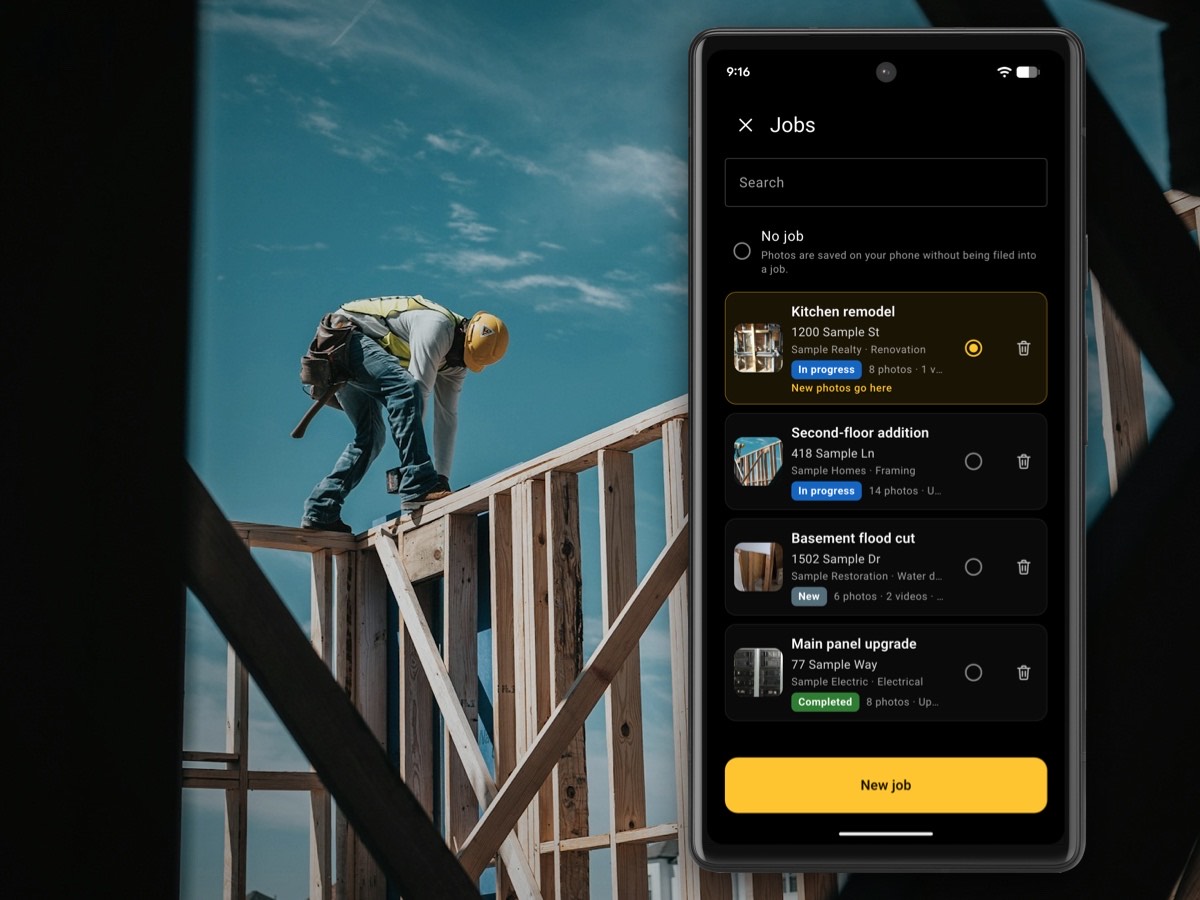
The system above works if everybody sticks to it. InspectCam™ Pro, coming soon, does the filing as you shoot, on Android. None of this is in the free app on Google Play today.
- Filed into the job you're standing at. With location allowed, the camera picks the job you've already taken photos for at this spot, and shows it on the job chip before the first shot. When two or more jobs share the spot, it asks “Which job?” instead of guessing. At a new address, “New job here” starts the job with the address from where you are.
- Sorted inside the job. Give each photo one or more categories, like Kitchen or Electrical, and tap one to see only those. Move photos to another job with their times and notes kept.
- When and where on every shot. Photos and videos carry the date, time, street address and GPS position in one thin line along the bottom. It's a record of when and where a photo was taken, not a certificate. With location off it's the date and time only, and videos recorded with both cameras at once (Dual) don't carry it.
- Marked up and explained. Numbered arrows and circles, a line of words for each number, and voice notes: hold Talk to record one with the photo. The original photo never changes.
- Before and after. Pair two photos, and the report prints them on a page of their own, before above after.
- Bring in the old ones. Photos already in your gallery can go into a job, marked “Added from phone gallery” so nobody mistakes them for photos taken on the job.

Crew photos reach the office
On a company account, everyone works the same jobs from their own Android phone. Small copies of the crew's photos go up on mobile data, so the office sees the day's photos during the day; full-size photos and videos wait for Wi-Fi unless you allow mobile data. A colleague's photo shows their name and the time, and the jobs list shows how many new photos someone else has added since you last opened a job. From a computer, sign in and download a job's photos, one at a time or the whole job at once. For more on running a crew this way, see InspectCam™ for contractors.
Subs send photos by QR code
On Team and Business, one tap on a job makes a QR code for each trade. Tape the sheet inside the door, or text each trade their link. The electrician scans their code and sends before and after photos and short videos from the phone's browser, with nothing to install, straight into the Electrician folder of your job. That's the end of photos stuck in text messages.

A report, not a pile of photos
One tap turns a job into a PDF report under your company name, with your logo, contact details and license number. Each photo prints with its date, time, note and marks, grouped by category. The last page carries one small “Generated with InspectCam” credit. For a stamp on every shot, see the timestamp camera.
Pro comes in three plans, all coming soon: Duo for up to 2 people at $39.99 a month, Team for up to 5 at $89.99, and Business for up to 10 at $159.99. On Duo and Team, paying yearly gets you a year for the price of ten months; Business is monthly only. US prices, plus any tax, charged by Google Play. At launch, Pro is sold in the United States; the free app is available everywhere. The QR photo drop for subs is on Team and Business only. For now, each person on your crew needs an Android phone; the iPhone app is coming soon, with Pro included. The details are on the Pro page.
Questions people ask
How do I organize construction photos by job?
Make one album per job in your phone's gallery app, named by street address, before you take the first photo. Start each visit with a photo of the house number or job sign, shoot wide before close, and move the day's photos into the job's album before you leave the site. Keep the originals and turn on photo backup.
What is the best way to name job site photos?
Name the folder by address, then name the files you send with the date first, the area and a number, such as 2026-10-18_kitchen-north-wall_014. Year-month-day sorts in order on any computer. Construction specs ask for much the same: the date and time in the file name and a unique sequential number.
How do I get job photos out of text messages?
Save them the day they arrive and move them into the job's album. When a photo matters, ask for the original by email or a shared album, because a text can send a smaller copy. Tell subs at the start of the job where to send photos, so the thread never becomes the record.
Should I edit or crop job photos?
Edit a copy, never the original. Construction specifications commonly ask for photos exactly as the camera recorded them, uncropped and unedited. The original file also keeps the date and time the phone stored in it.
How can a crew share photos from one job?
Make one shared album per job, owned by one person, and share it with everyone who shoots on that job, so the photos land in one place instead of several camera rolls. Write down the album name and when to file. InspectCam™ Pro, coming soon, puts the crew on the same jobs, and the office sees their photos during the day.
Does InspectCam™ sort photos into jobs?
The free app saves its photos and videos to an InspectCam™ folder on the phone, apart from the phone's camera folder. Filing them into jobs is InspectCam™ Pro, coming soon: the camera picks the job you're standing at with location allowed, or asks Which job? when two or more jobs are close by.
Gallery apps change their menus often, so the steps above may read a little differently on your phone. If something here didn't match, tell us and it may help the next person.